有几天没更新,看阅读量发现没人看 Swift Log,哈哈哈,可总也不能公众号上只有废话连篇的废话吧。
在 TravelGo 中,这样的列表视图给我很大的挑战。一方面我是一窍不通刚刚踏入半只脚的小白,另一方面我也怀疑这样的视图是否真的合适这样的 App。
不过既然身已在贼船,那干脆一不做二不休,干吧。
对于这类需要循环处理数据的列表画面来说,手动来写每一个事件模块是不现实的。聪明的办法是代码绘制出一个事件模块的模板,之后将数据循环到每一个事件模块中。
在 Xcode 中,我将事件模块的代码称作:BaceCardView,在 BaseCardView 中,我描述了一个可以兼容任意属性的事件模块视图:
import SwiftUI

//基础卡片代码
struct BaseCardView: View {
    var cardColor1: Color = Color("通知")
    var cardColor2: Color = Color("通知-1")
    var showCardView = false

    var body: some View {
        HStack {
            Spacer()
        }        .padding()
        .frame(width: 400, height: showCardView ? 640 : 140, alignment: .leading)
        .background(LinearGradient(gradient: Gradient(colors: [cardColor1, cardColor2]), startPoint: .topLeading, endPoint: .bottomTrailing))
        .clipShape(RoundedRectangle(cornerRadius: 20, style: .continuous))
        .shadow(color: cardColor1.opacity(0.3), radius: 20, x: 0, y: 20)        .offset(x: 40)
        .padding(8)    }}
以及一个 TheTextView 和 SubTextView,负责提供卡片中左侧的主标题与副标题。
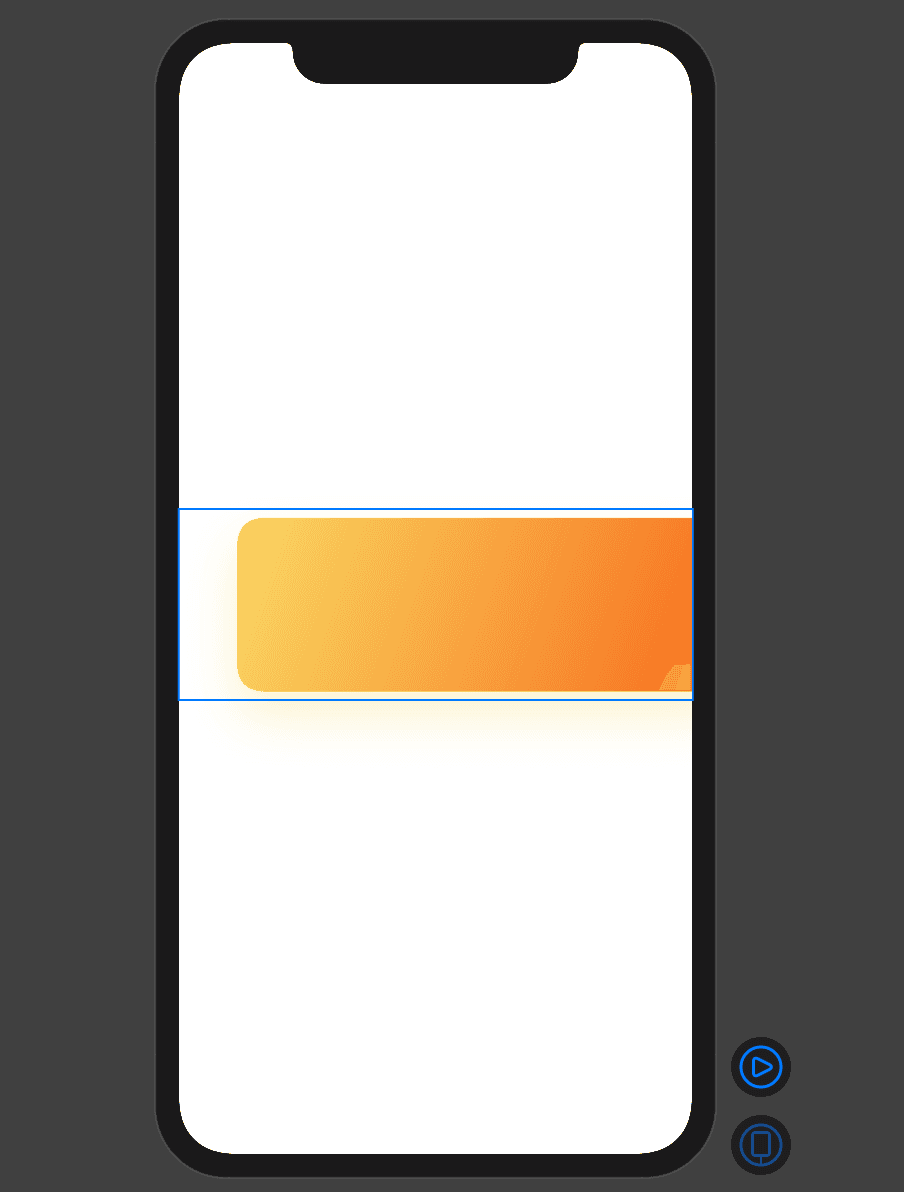
最终,在 TheCardView 中,将前三个模块组合到一起:
import SwiftUI

//卡片文字点线数据组合代码
struct TheCardView: View {
    let Data: Data
    let generator = UINotificationFeedbackGenerator()
    @State var showCard: Bool = false
    @State var showSubCard: Bool = false
    @State var showReportErrorView = false
    struct baseCardStyle: ButtonStyle {
        func makeBody(configuration: Self.Configuration) -> some View {
            configuration.label
                .scaleEffect(configuration.isPressed ? 0.95 : 1)
        }
    }
    var body: some View {
        HStack(alignment: .top) {
            BaseDotView(
                dotColor1: Data.卡颜色1, dotColor2: Data.卡颜色3
            )            .contextMenu()
 {                Button(action: {})
 {                    Text("预计\(Data.预计时间)分钟后")
                    Image(systemName: "clock.fill")
                }                Button(action: {
                    self.showReportErrorView.toggle()
                })
 {
                    Text("报告行程错误")
                    Image(systemName: "questionmark.diamond.fill")
                }
                .sheet(isPresented: $showReportErrorView) {
                    ReportErrorView()
                }
            }
            .offset(x: 38, y: 70)
            ZStack {
                Button(action: {
                    let impactLight = UIImpactFeedbackGenerator(style: .light)                    impactLight.impactOccurred()
                    print("asshole2")
                    PlaySound(sound: "pop", type: "wav")
                    self.showSubCard = true
                }
                )
 {
                    ZStack(alignment: .bottom) {
                        BaseCardView(
                            cardColor1: Data.卡颜色1, cardColor2: Data.卡颜色2, showCardView: showCard
                        )
                            .offset(x:40, y:45)
                            .opacity(Data.是否为双卡 ? 1 : 0)                        SubTextCardView(
                            cardTitle: Data.卡2标题, image: Data.卡2图片, QR: Data.卡2是否为QR
                        )
                            .offset(x:40, y:45)
                            .opacity(Data.是否为双卡 ? 1 : 0)
                    }
                }
                .buttonStyle(baseCardStyle())
                .sheet(isPresented: $showSubCard) {
                    SubViewCard()
                }
//
                if showSubCard {
//
SubViewCard()
//
}
                Button(action: {
                    let impactMed = UIImpactFeedbackGenerator(style: .medium)                    impactMed.impactOccurred()
                    print("asshole1")
                    self.showCard.toggle()
                    PlaySound(sound: "pop", type: "wav")
                }) {
                    ZStack(alignment: .top) {
                        BaseCardView(
                            cardColor1: Data.卡颜色1, cardColor2: Data.卡颜色2, showCardView: showCard
                        )
                        TheTextCardView(
                            cardTitle: Data.卡标题, cardSubTitle1: Data.卡副标题1, cardSubTitle2: Data.卡副标题2, image1: Data.图片1, image2: Data.图片2, showCardView: showCard
                        )
                    }
                }
                .animation(.spring(response: 0.3, dampingFraction: 1, blendDuration: 0))
                .buttonStyle(baseCardStyle())
            }
        }
        .padding(.bottom, Data.是否为双卡 ? 40 : 0)
    }
}
最终呈现的效果为:
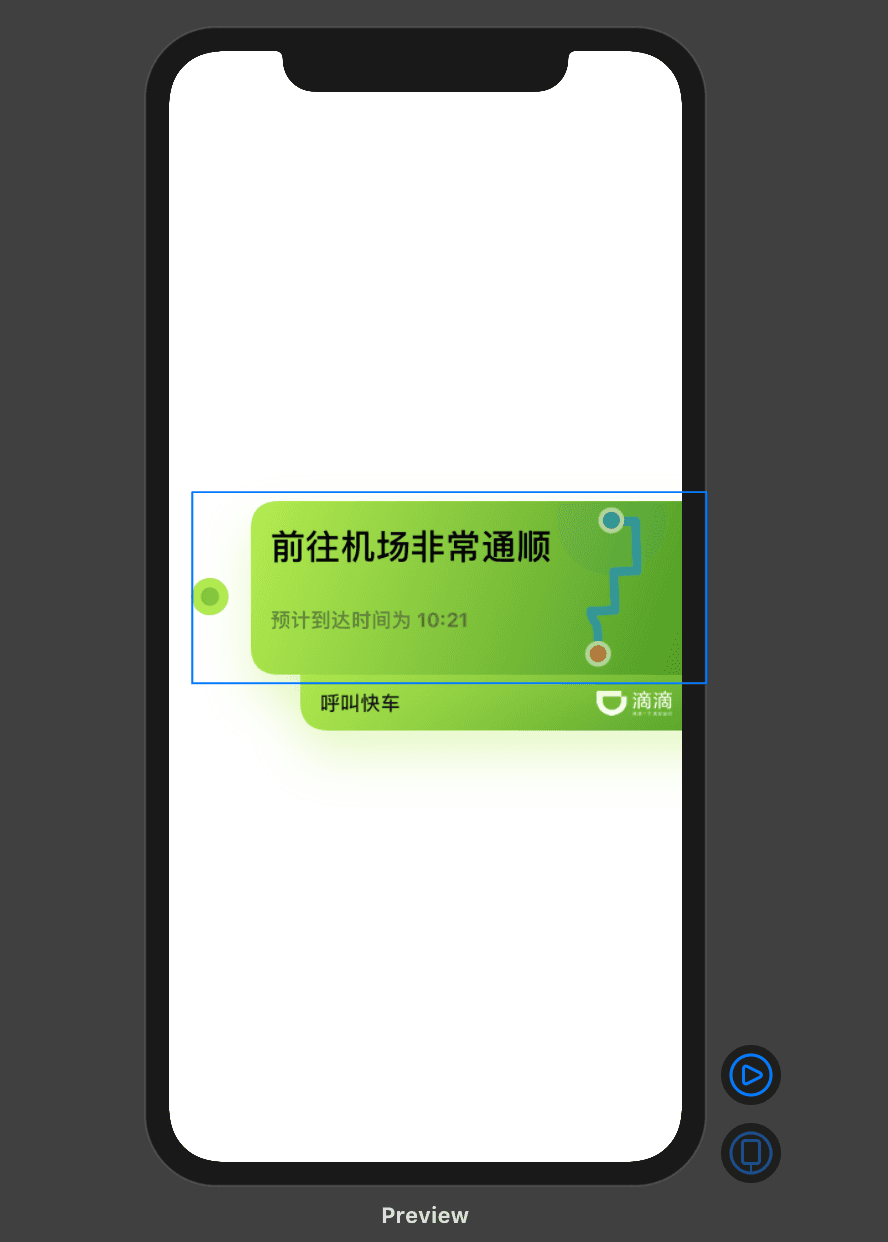
这样的好处是在多条数据产生时,只需调用一组事件模块的数据,便可以渲染无数条事件模块的视图。一方面可以节省代码数量,减轻后续需要调整升级的成本,另一方面还可以减轻手机运算的压力。